

Top bar
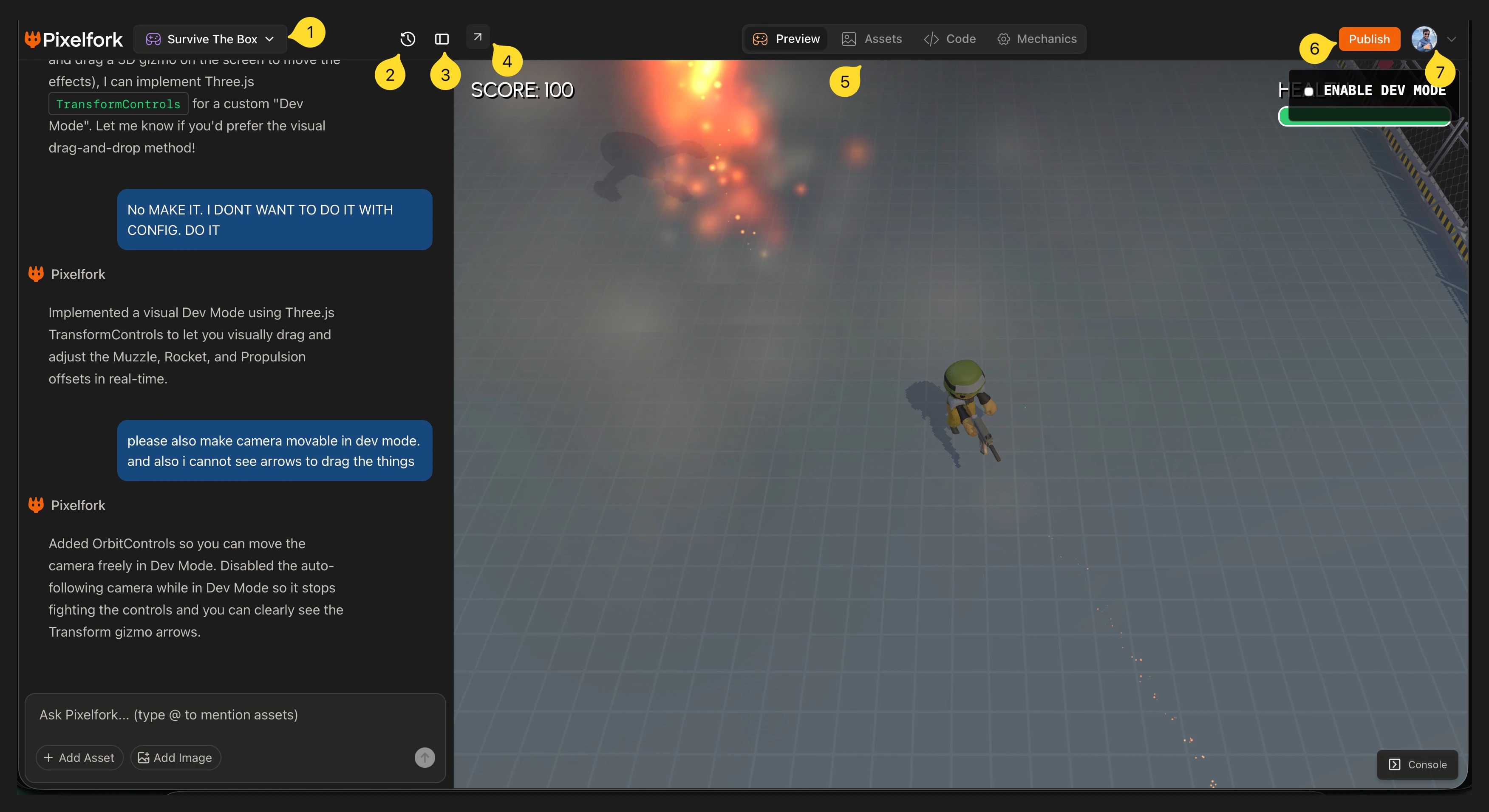
The top bar runs across the full width of the editor:- Game name — shown at the top left (e.g. Gear War). Click the dropdown arrow to rename or manage the game.
- History icon — the clock icon opens your version history
- Layout toggle — to open and close chat panel
- External link icon — opens your game in a new browser tab
- Preview / Assets / Code — tab switcher for the right panel
- Publish — the orange button top right. Publishes your game and generates a shareable link
- Profile avatar — top far right, for account settings and billing.
The chat panel
The left panel is your full conversation with the AI. Every prompt you send and every Pixelfork response appears here as a persistent thread. The AI remembers your game’s entire history — so every new message builds on everything before it. After certain responses, Pixelfork shows a tips card with quick reminders of things you can do — like opening Game Mechanics, uploading to Assets, attaching a Reference Image, or switching to the Code Editor. At the bottom of the chat panel is the prompt bar — “Ask Pixelfork… (type @ to mention assets)” — with two buttons next to it:- Add Asset — upload a new asset without leaving the chat
- Add Image — attach a reference image to your current prompt